

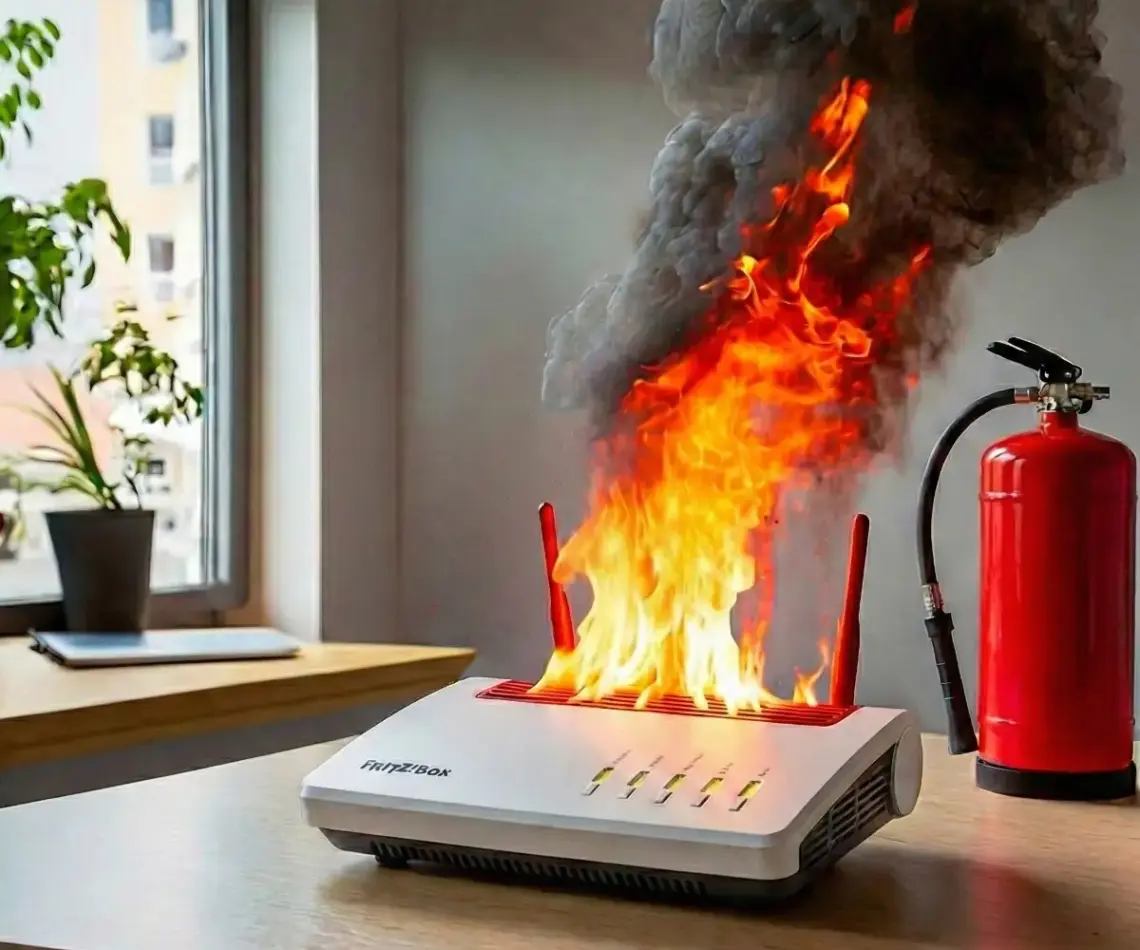

A brief introduction: My provider offers 100 Mbps download, but at the time I signed up, they only gave me a Fritz!Box with 2.4 GHz Wi-Fi, which can’t deliver 100 Mbps due to certain limitations. I then bought a new Fritz!Box 7490 with 5 GHz Wi-Fi directly from a retailer, without any branding. However, my provider’s network then smuggled its restrictions onto this box. Pretty rubbish, and even more rubbish was their technician who denied it.
After some back and forth, and the typical tutorials that did nothing for me, I came up with the following scenario based on these (as of October 2018, with the 7490 and firmware version 7.0.1). As with all tutorials, read it through first! Unfortunately, as with all things, there is no guarantee of success, and if at any point this tutorial stops working or gives different results: you are doing this of your own free will!
Before you begin
- Windows computer or at least a computer with a proper Ethernet port that is not controlled via USB. Then it should also work with a Windows virtual machine. Because…
- … you have to run the recovery.exe for your Fritz!Box: Google search for AVM Recovery and your model designation, e.g. 7490, and you should get the FTP folder from AVM directly.
- The Fritz!Box is best placed on a table next to the computer (so you can keep an eye on the flashing power LED, which will help you get the timing right) and connected to the computer via a LAN cable.
- The computer or its Ethernet connection is given a fixed IP, 192.168.178.2 – the netmask is, as usual, 255.255.255.0, the rest can be ignored.
Preparation
- Open Command Prompt as administrator – press Start, type cmd, right-click, open as administrator (for whatever reason, FTP login works better this way).
- Enter ftp 192.168.178.1, do not press Enter yet.
- Run the AVM recovery.exe and take it to the step where you are asked to disconnect the Fritz!Box from the power supply. Wait here! After that you will be asked to reconnect the power – you will need this step later.
- Arrange the two windows, AVM recovery and Command Prompt, close to each other on the desktop – things will need to move a bit quicker in a moment.
Execution
You will know most of this if you have dealt with the topic before. The new thing (for me) is to run the recovery.exe immediately after the reboot:
- Remove the Fritz!Box from the power supply, have the Command Prompt in focus, plug the power back in.
- Several LEDs light up at once, then the power LED stays lit for a moment and then starts flashing.
- After the first flash, press Enter in the Command Prompt – the FTP login appears.
- User and password are: adam2
- Enter the following step by step, confirming each with Enter (each command should return a response code including 200):
debug bin
quote GETENV provider
quote UNSETENV provider
quote SETENV firmware_version avm
Now pause for a moment. The idea that occurred to me at this point is that the box now thinks it is a free/original Fritz!Box. But when it then boots up completely, the provider additive nonsense kicks in from somewhere. However, the recovery.exe can identify the box as a free one at the right moment and overwrites the additive stuff accordingly.
That’s why it continues like this:
- Enter quote REBOOT (Edit: using uppercase may be relevant for older devices), press Enter, wait briefly until all LEDs on the Fritz!Box light up… (Edit: or alternatively run a ping on the box’s IP in parallel)
- … and then immediately fire up the prepared recovery.exe to search for the Fritz!Box.
This should work straight away and overwrite all partitions on the Fritz!Box. If the version number of the box is not found, the Ethernet connection should be set to 10 Mbit/s, half duplex in the Windows settings of the network device (feel free to include this in the preparation as well). You may also need to disable the Windows Firewall or your firewall in general. In my case, it worked even with the Windows Firewall accidentally enabled.
The recovery.exe runs through accordingly, you confirm everything and the next restart takes a little longer. As I said, in my case the combination of these two things worked straight away, after many other tutorials had brought nothing at all. I then booted the box several times, set it up casually, reset it to factory settings – to see if it would stick. And it did!
Best of luck! 😉
This post is part of my tutorials.
Leave a Reply